In addition to importing from a configured repository, you can upload dossier files directly from your computer as a ZIP archive or a folder. This is useful when you receive submissions via email, download them from a portal, or need to review files that are not on a shared server.
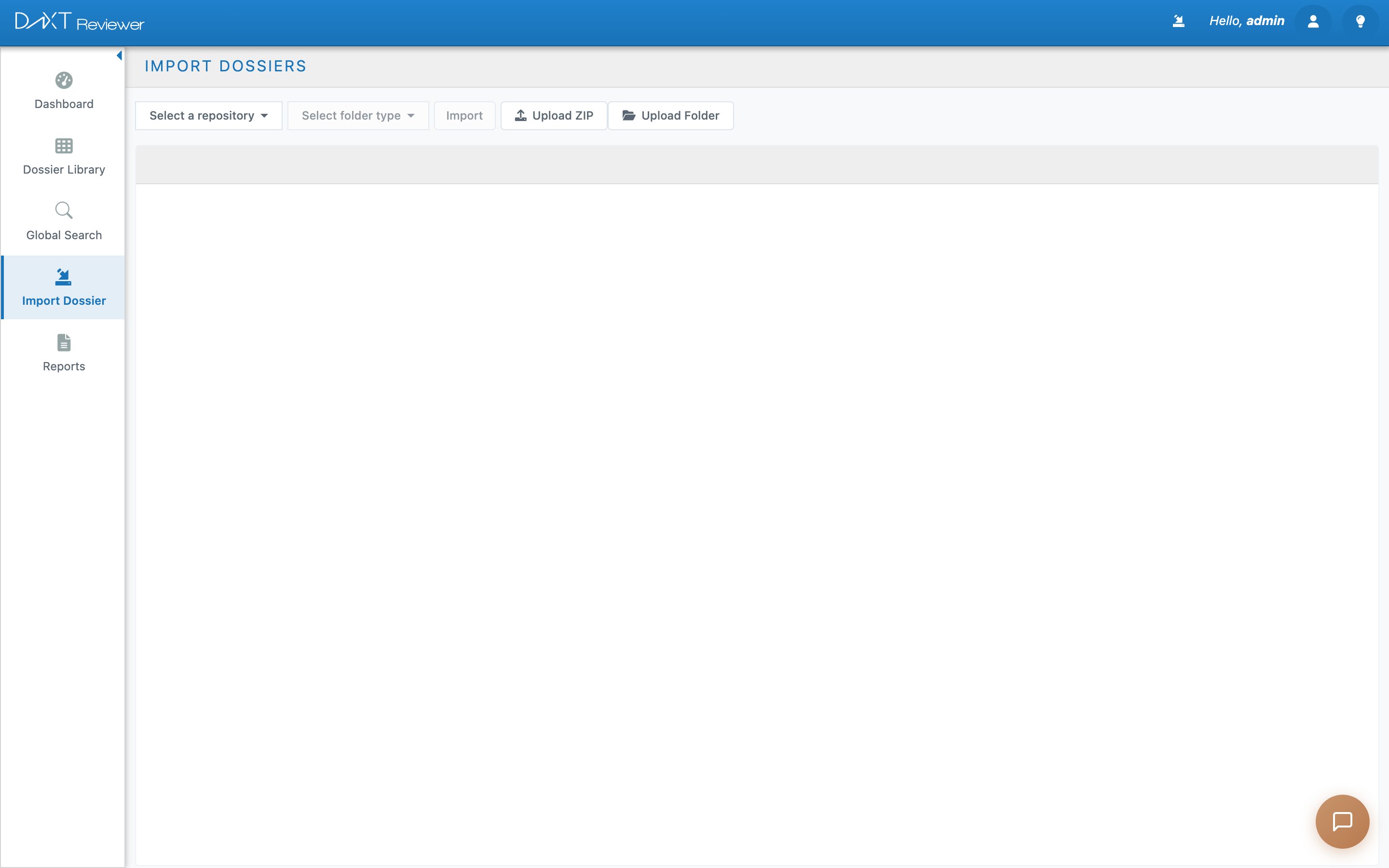
Upload ZIP and Upload Folder buttons on the Import Dossier page
Upload ZIP #
Use this when you have a ZIP file containing an eCTD submission or a folder of documents.
- Click Import Dossier in the sidebar.
- Select a repository from the dropdown (the upload will be stored here).
- Click the Upload ZIP button (upload icon) in the toolbar.
- Your browser’s file picker opens. Navigate to and select your .zip file.
- A progress bar shows the upload percentage and file size. For large files (hundreds of MB), this may take several minutes.
- When the upload completes, a dialog asks: “Would you like to auto-import this dossier?”
- Yes — Reviewer immediately imports the uploaded dossier. Best for single-dossier ZIPs.
- No — The files are uploaded to the repository but not imported yet. You can import them later from the folder browser.
- If you chose Yes, the dossier appears in the Dossier Library when the import finishes.
Important: The ZIP file must contain a proper eCTD folder structure with an
index.xml backbone file for the import to succeed. A ZIP of random PDFs without eCTD structure will upload but will not import correctly as an eCTD dossier.Tip: You can track upload progress in real-time. If you need to pause or cancel, use the Pause or Cancel buttons that appear on the progress bar.
Upload Folder #
Use this when your dossier files are in an uncompressed folder on your computer (not zipped).
- Click Import Dossier in the sidebar.
- Select a repository from the dropdown.
- Click the Upload Folder button (folder icon) in the toolbar.
- Your browser’s folder picker opens. Select the root folder of your dossier (the folder that contains the sequence folders or
index.xml). - Reviewer compresses the folder in your browser before uploading. This means you see a brief processing step before the upload begins.
- The same progress bar and auto-import dialog appear as with ZIP upload.
Note: Folder upload uses browser-based compression, which means your browser does the work of creating a ZIP on-the-fly. This is slightly slower than uploading a pre-made ZIP for very large dossiers (1 GB+), but it is more convenient for smaller submissions.
Supported Formats #
| Format | Supported | Notes |
|---|---|---|
| Standard ZIP (.zip) | Yes | Most common format. Recommended. |
| ZIP64 (.zip) | Yes | For archives larger than 4 GB |
| RAR, 7z, tar.gz | No | Convert to .zip before uploading |
| Uncompressed folder | Yes | Use the Upload Folder button (browser-side compression) |
What Happens After Upload #
Uploaded files are stored in the repository you selected. If you chose auto-import, the dossier is immediately parsed and added to your Dossier Library. If not, you can import it later:
- Go to Import Dossier in the sidebar.
- Select the same repository.
- Browse to the uploaded folder.
- Select it and click Import.
Troubleshooting #
| Problem | Solution |
|---|---|
| Upload stalls at a percentage | Check your internet connection. Large uploads are sensitive to network drops. Try again on a stable connection. |
| Browser crashes during folder upload | The folder may be too large for browser-based compression. ZIP the folder manually first, then use Upload ZIP. |
| Auto-import fails after upload succeeds | The folder structure may not be valid eCTD. Check that there is an index.xml file in the uploaded content. |
| “No repository selected” error | Select a repository from the dropdown before clicking Upload. |