Overview #
PDF Rendering Configuration in DnXT Administrator provides comprehensive tools for managing how PDF documents are generated, validated, and certified for regulatory submission. Regulatory authorities worldwide impose strict technical requirements on PDFs included in eCTD submissions — from PDF version and font embedding to bookmarks, hyperlinks, and security settings. The PDF Rendering module ensures your documents meet these requirements before they are included in a submission.
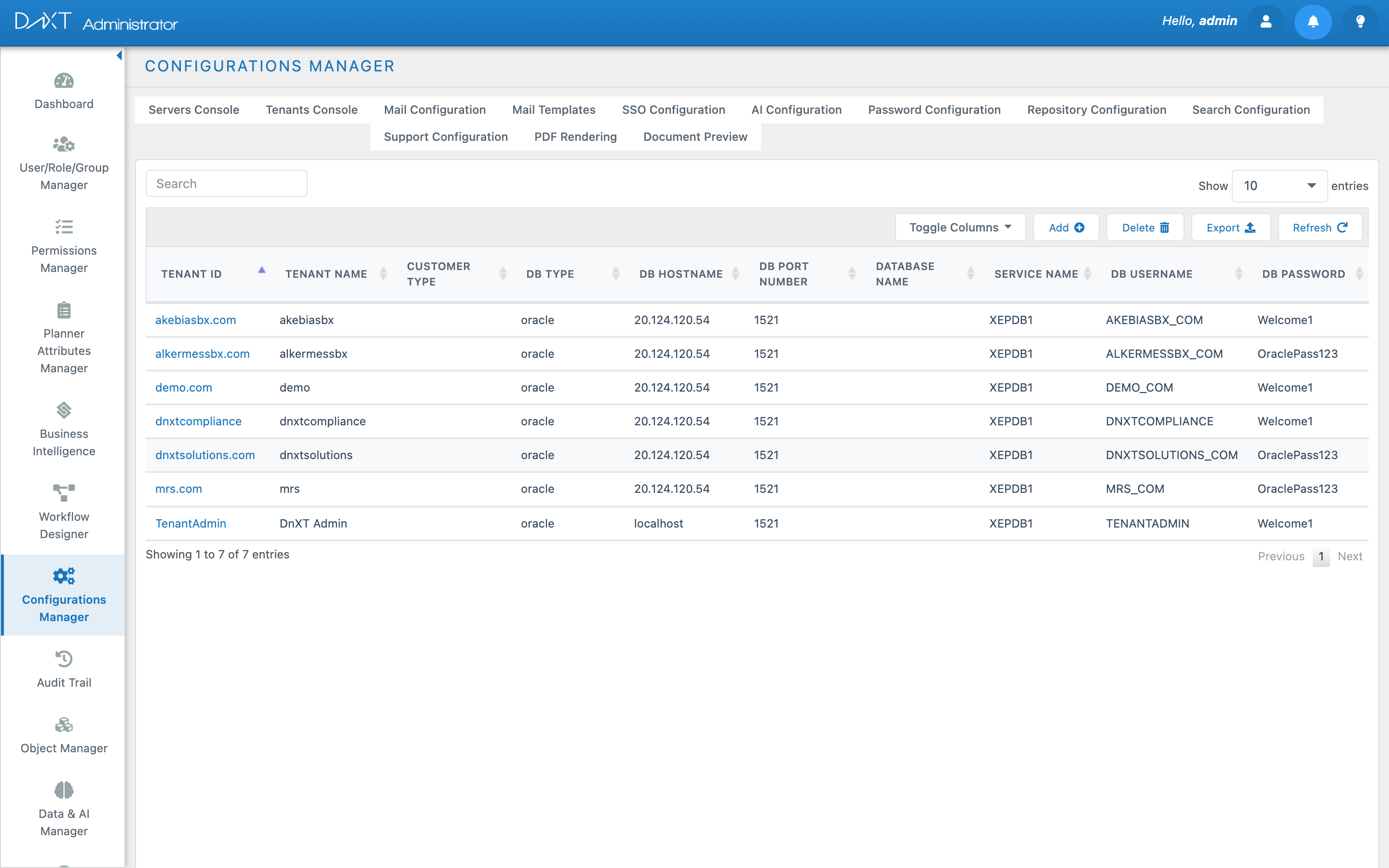
This module is organized into three tabs: Profiles (rendering configurations per region), Compliance Rules (the validation rules applied to PDFs), and Validate PDF (test a specific file against a profile).
Accessing PDF Rendering Configuration #
- Log in to DnXT Administrator.
- Click PDF Rendering in the left sidebar (or navigate to Configurations > PDF Rendering).
- The PDF Rendering view opens with three tabs: Profiles, Compliance Rules, and Validate PDF.
Profiles Tab #
The Profiles tab manages PDF rendering profiles — named configurations that define how PDFs should be generated and what standards they must meet. Each profile targets a specific regulatory region and PDF specification.
Profiles Table #
The profiles table displays all configured profiles with the following columns:
Creating a New Profile #
- Click the Add button in the toolbar.
- Fill in the profile fields:
- Click Save.
Cloning a Profile #
To create a new profile based on an existing one:
- Find the profile in the table.
- Click the Clone button in the Actions column.
- A copy of the profile is created with “(Copy)” appended to the name.
- Edit the cloned profile to customize it for your needs.
Region-Specific Requirements #
Different regulatory authorities have different PDF requirements:
Compliance Rules Tab #
The Compliance Rules tab displays all PDF validation rules that DnXT checks during PDF validation. Rules are predefined by the system and cover the full spectrum of PDF technical requirements for regulatory submissions.
Category Filter #
Use the category filter to narrow the rules list by type:
Rules Table #
Each compliance rule displays the following information:
Validate PDF Tab #
The Validate PDF tab provides an on-demand PDF validation tool. Use it to check any PDF file against a specific rendering profile before including it in a submission.
Running a Validation #
- Navigate to PDF Rendering > Validate PDF.
- Select a Profile from the dropdown (determines which compliance rules are applied).
- Enter the File Path of the PDF to validate (the path must be accessible from the DnXT server).
- Select the Source Type (e.g., repository file, uploaded file).
- Click Validate.
Validation Results #
After validation completes, the results are displayed in two sections:
Summary #
A high-level overview showing:
- Total number of rules checked
- Number of Errors (red) — issues that must be fixed
- Number of Warnings (yellow) — issues that should be reviewed
- Number of Info (blue) — informational messages
- Overall Pass/Fail status
Detail Table #
A detailed table listing every rule that was checked, its result (Pass, Fail, Warning), and a description of any issues found. Failed rules include specific information about what was wrong and how to fix it.
Common PDF Issues and Resolutions #
FAQ #
Which PDF version should I use? #
Most regulatory authorities accept PDF versions 1.4 through 1.7. PDF 1.4 has the broadest compatibility and is the safest choice if you are unsure. Check the latest guidance from your target authority for specific requirements.
Can DnXT convert Word documents to compliant PDFs? #
Yes. DnXT’s rendering engine can convert documents to PDF format using the configured profile settings. The rendered PDF will have fonts embedded, correct version, and other profile-specified properties applied automatically.
What does “Fast Web View” mean? #
Fast Web View (linearization) restructures the PDF so that it can begin displaying before the entire file is downloaded. This is a “nice to have” for web-based submission portals but is not required by most authorities.
Can I create custom compliance rules? #
The compliance rules are system-defined and cover industry-standard requirements. Custom rules cannot be added through the UI. If you need additional validation checks, contact DnXT Solutions to discuss custom rule development.
How often should I validate PDFs? #
Validate PDFs when they are first added to a submission and again before final publishing. If a document is updated or re-rendered, validate the new version. Establishing a validation step in your workflow (using the Workflow Manager) ensures this happens consistently.