On This Page
The Labeling History Report tracks labeling documents (prescribing information, patient inserts, medication guides, SPL documents) across all submissions in a dossier. It shows which labeling files are current, which have been superseded, and how they have changed over time.
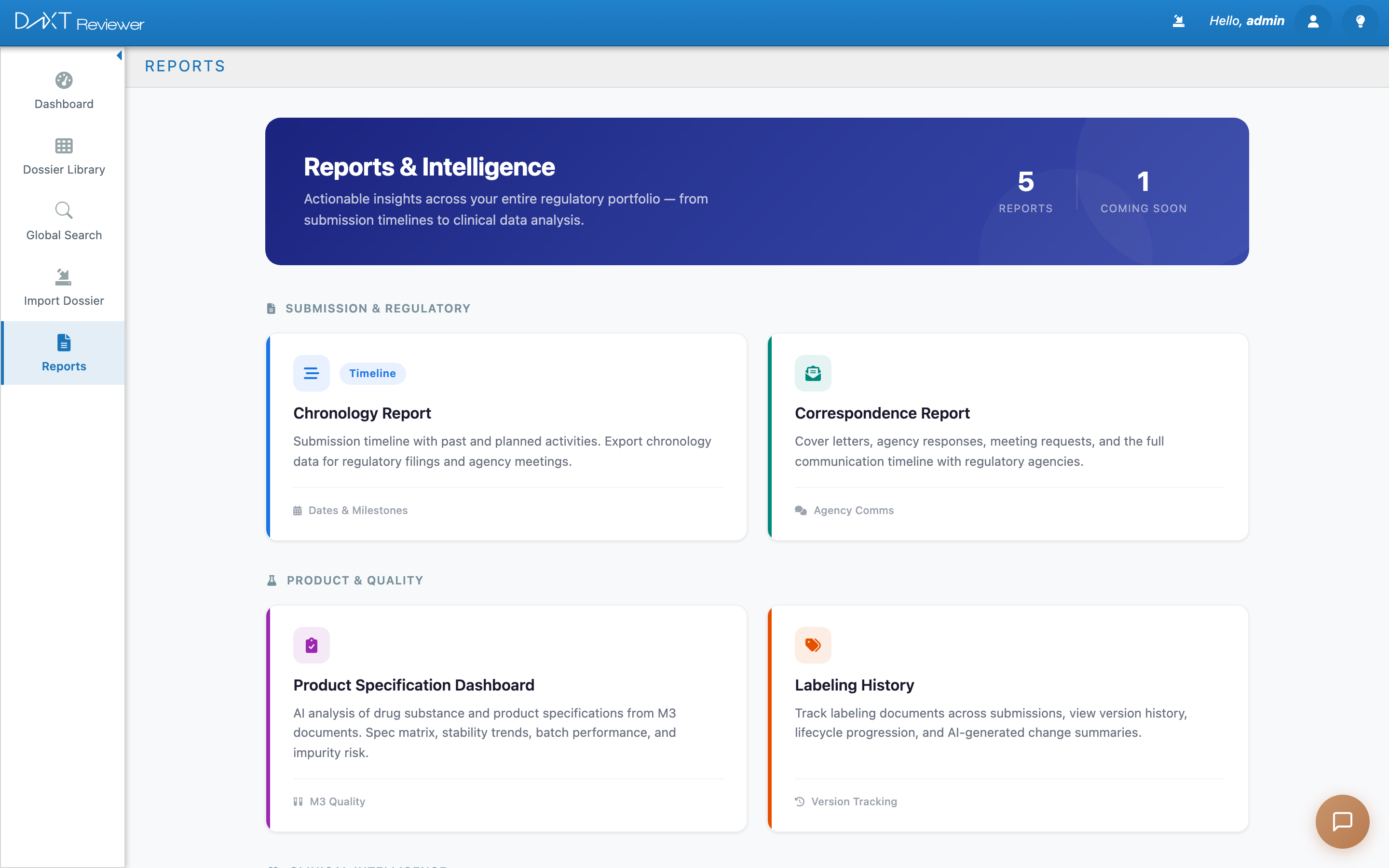
Labeling History Report showing document versions and change tracking
Accessing the Labeling History Report #
- Click Reports in the sidebar.
- Click the Labeling History Report tile.
- Select a dossier from the application selector at the top.
Summary Cards #
| Card | What It Shows |
|---|---|
| Total Documents | Total number of labeling documents found across all submissions |
| Current | Labeling documents that are the latest version (not superseded) |
| Superseded | Labeling documents replaced by a newer version in a later submission |
| SPL Documents | Structured Product Labeling documents specifically |
View Modes #
Five view modes let you analyze labeling history from different angles:
| View | What It Shows | Best For |
|---|---|---|
| Version Timeline | Each labeling document shown as a timeline across submissions | Seeing how a specific document evolved |
| Document Comparison | Side-by-side diff of two versions of the same document | Spotting exact changes between versions |
| Category View | Documents grouped by labeling type (PI, PPI, Med Guide, etc.) | Getting an overview by document category |
| Status Summary | Current vs. superseded status for each document | Identifying which documents are active |
| Compliance Check | Flags missing or potentially outdated labeling documents | Audit preparation and compliance review |
Toolbar Controls #
Refresh — Two options:
- Use Cache — Shows the last-computed results (fast, but may be outdated if new submissions were imported since the last refresh)
- Full Re-extraction — Re-reads all documents from the dossier files (slower, but guaranteed current). Use this after importing new sequences.
AI Enrich — Runs AI analysis to detect and classify labeling changes between versions. The AI highlights text additions, deletions, and modifications.
Export — Downloads the labeling history as a spreadsheet.
Tracing a Labeling Change #
To trace how a specific labeling document changed from one submission to another:
- Open the Labeling History Report for your dossier.
- Switch to the Version Timeline view.
- Find the document you want to trace (e.g., “Prescribing Information”).
- Click any version to view it. Click a second version to see a comparison.
- Use AI Enrich if you want automated change detection.