Overview #
The Chronology Report in DnXT Reviewer provides a comprehensive timeline view of all submission activity for a regulatory application. It combines historical submissions with planned future filings, generating an interactive chronological record that includes summary statistics, an activity heatmap, detailed entry management, and AI-powered enrichment. This report is essential for understanding the complete filing history of a dossier, planning future submissions, and generating exportable chronology documentation for regulatory teams.
Accessing the Chronology Report #
There are two ways to access the Chronology Report:
- From the Reports hub — Navigate to Left Sidebar → Reports and click the Chronology card.
- From the TOC view — Some navigation paths from the TOC toolbar link directly to the Chronology Report for the current dossier.
Report Toolbar #
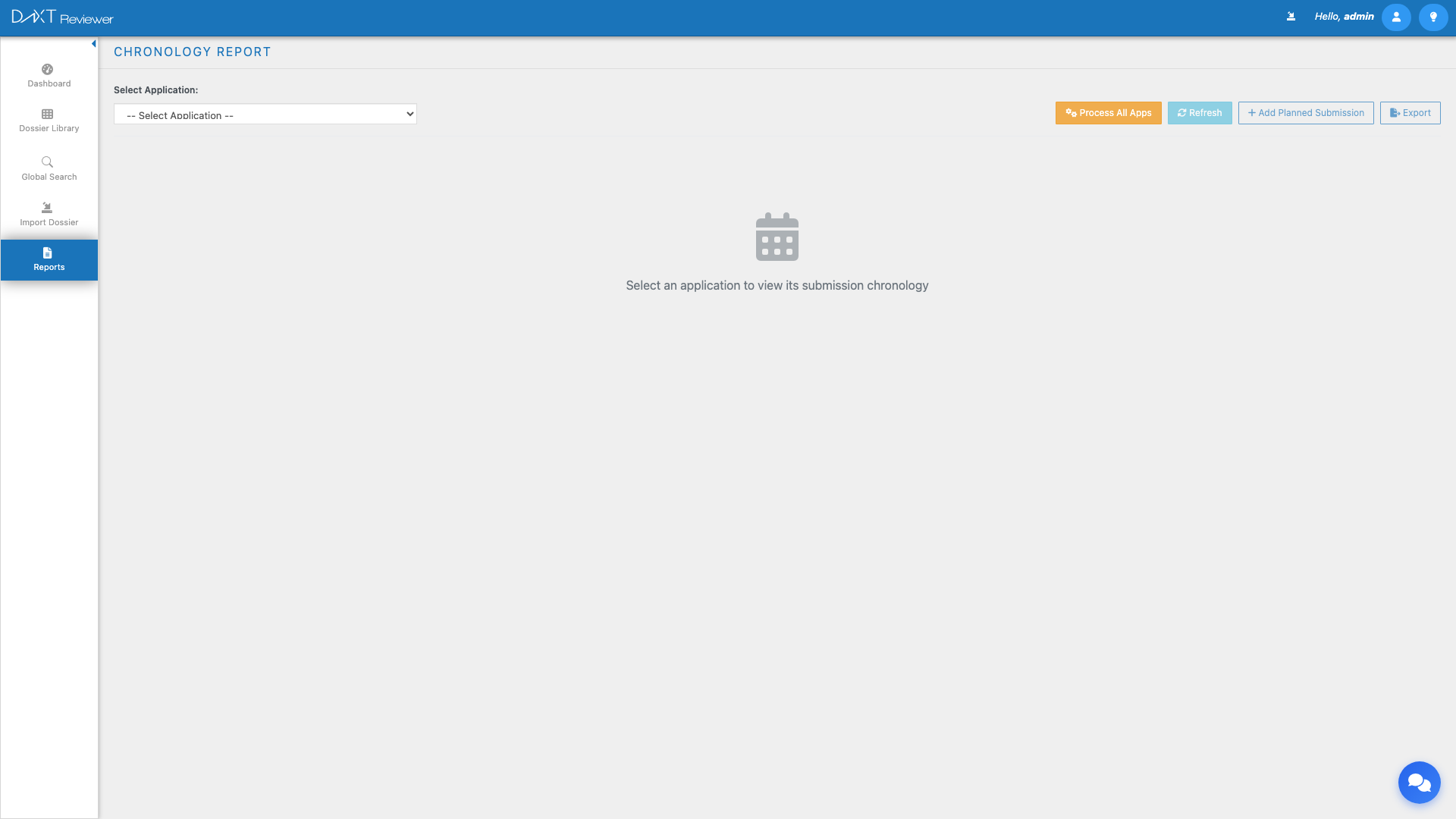
The toolbar at the top of the Chronology Report provides the following controls:
| Control | Description |
|---|---|
| Application Selector | Dropdown to select which dossier (application) to display the chronology for |
| Process All Apps | Generates chronology data for all applications in your portfolio (batch processing) |
| Refresh | Reloads the chronology data from the server |
| Add Planned Submission | Opens the Add Entry modal to create a planned future submission |
| Export | Downloads the chronology data as a CSV or PDF file |
Summary Cards #
Below the toolbar, a row of summary cards provides at-a-glance statistics about the selected application’s submission history:
| Card | Description |
|---|---|
| Total Sequences | Total number of submission sequences (both past and planned) |
| Date Range | Span from the earliest to the latest submission date |
| Submitted | Count of sequences that have been actually submitted to the health authority |
| Planned | Count of future planned submissions not yet filed |
| Submission Types | Breakdown of submission types (Original, Amendment, Supplement, etc.) |
| FDA Approval | Whether the application has received FDA approval, and the approval date if applicable |
Activity Heatmap #
The Activity Heatmap is a visual grid that maps submission activity across months and years. Each cell in the grid represents a month-year combination, and the color intensity reflects the number of submissions filed in that period.
Heatmap Features #
- Color coding — Lighter colors indicate fewer submissions; darker colors indicate more activity. Empty cells (no submissions) are shown in white or very light gray.
- Interactive cells — Click any cell to filter the chronology entries table below to show only submissions from that month and year.
- Year rows — Each row represents a calendar year, and each column represents a month (January through December).
- Hover tooltips — Hover over any cell to see the exact count and list of submissions for that period.
Filter Tabs #
Above the chronology entries table, three filter tabs control which entries are displayed:
- All — Shows all entries (past submitted and future planned)
- Past Submissions — Shows only entries that have already been submitted
- Future Planned — Shows only planned entries that have not yet been submitted
Chronology Entries Table #
The main table displays individual chronology entries with the following columns:
| Column | Description |
|---|---|
| Sequence | Submission sequence number (e.g., 0000, 0001, 0002) |
| Type | Submission type (Original Application, Amendment, Supplement, Annual Report, etc.) |
| Date | Submission date (inline-editable for planned entries) |
| Status | Current status: Submitted, Planned, Approved, Rejected, Withdrawn |
| Description | Text description of the submission’s purpose or content |
| Actions | Per-row action buttons |
Inline Editing #
The Date field in chronology entries is inline-editable. Click on a date cell to open a date picker and modify the date without opening a separate dialog. This is particularly useful for adjusting planned submission dates.
Per-Row Actions #
Each row in the chronology table has an actions column with the following options:
| Action | Description |
|---|---|
| View TOC | Opens the submission in the TOC viewer |
| AI Enrich | Runs AI analysis to generate a summary for this entry |
| Edit | Opens the Edit Entry modal to modify all fields |
| Mark Submitted | Changes a planned entry’s status to Submitted (for when the filing is actually sent) |
| Delete | Removes the chronology entry (with confirmation) |
Adding Planned Submissions #
The Add Planned Submission feature allows you to create forward-looking entries for submissions you intend to file in the future.
Step-by-Step #
- Click the Add Planned Submission button in the toolbar.
- The Add/Edit Entry modal opens.
- Fill in the following fields:
- Sequence Number — The planned sequence number
- Submission Type — Select from an extensive dropdown including Original Application, Amendment, Supplement, Annual Report, IND Safety Report, Efficacy Supplement, Manufacturing Supplement, Labeling Supplement, and many more
- Planned Date — Expected submission date
- Description — Brief description of the planned submission’s purpose
- Click Save to create the entry.
AI Enrichment #
DnXT Reviewer integrates AI-powered analysis to automatically generate summaries and insights for chronology entries.
Per-Entry AI Summary #
Click the AI Enrich action on any chronology entry to generate an AI summary. The system analyzes the submission’s content (documents, metadata, and context) to produce:
- A concise narrative summary of the submission’s purpose and content
- Key highlights and notable changes from the previous sequence
- Document counts and content area summaries
Bulk Processing #
Click the Process All Apps button in the toolbar to run AI enrichment across all applications in your portfolio. This bulk operation generates summaries for every chronology entry that does not already have one, helping you build a comprehensive, AI-generated narrative of your entire regulatory portfolio.
Exporting the Chronology #
Click the Export button to download the chronology data. The export includes all entries (respecting active filter tab selection) with all columns and any AI-generated summaries. Export formats include CSV for data analysis and PDF for formatted reports.
Frequently Asked Questions #
Can I add chronology entries for submissions that are not imported? #
Yes. The Add Planned Submission feature allows you to create entries for submissions that do not yet exist in your Reviewer library. This is useful for planning future filings or documenting historical submissions that were not imported.
How accurate are the AI-generated summaries? #
AI summaries are generated based on available metadata and document content. They provide a helpful starting point but should be reviewed by a regulatory professional for accuracy before use in official documentation.
Can I edit AI-generated summaries? #
Yes. AI summaries are stored as editable description fields. Click the Edit action on any entry to modify the AI-generated text.
What does “Mark Submitted” do? #
The Mark Submitted action changes a planned entry’s status from “Planned” to “Submitted”. This is a quick way to update the chronology when a planned filing has actually been sent to the health authority, without needing to open the full edit dialog.
Can I undo a deletion? #
No. Deleting a chronology entry is permanent. A confirmation dialog is shown before deletion to prevent accidental removal. If you delete an entry for an imported submission, you can recreate it by refreshing the chronology or re-running AI enrichment.
Related Articles #
- Reports Overview — All available report types
- Labeling History Report — Document version tracking and analysis
- Specification Dashboard — CMC specification tracking
- Correspondence Tracking — Agency communication management


