Submission Authoring with the TOC Editor #
The TOC Editor is the heart of DnXT Publisher — a powerful split-panel workspace where you build, edit, and manage eCTD submissions. It provides a visual representation of the eCTD Table of Contents (TOC) tree on the left, paired with document viewing, properties editing, and content management tools on the right. This guide covers every aspect of the TOC Editor so you can work efficiently and confidently.
Accessing the TOC Editor #
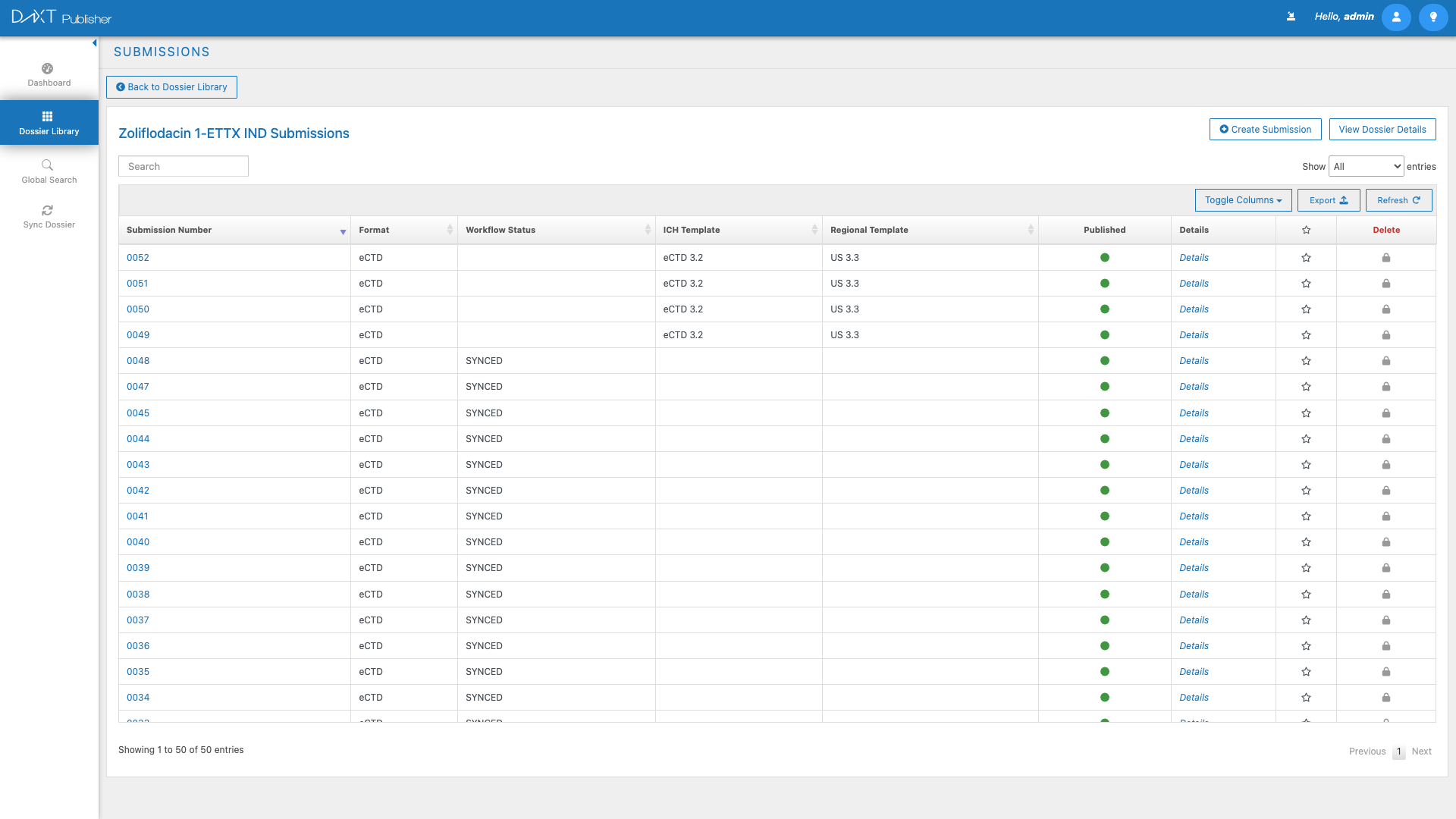
To open the TOC Editor, double-click any dossier or submission in the Dossier Library. You can also access it by clicking on a task item from the Dashboard that links to a specific submission. The TOC Editor loads with the selected dossier and its most recent submission in view.
Top Menu Bar #
The top menu bar spans the full width of the TOC Editor and provides context and controls for the current working session.
Dossier and Submission Selectors #
Two dropdown selectors at the top-left let you switch context without returning to the Dossier Library:
- Dossier Selector Dropdown — Shows the name of the currently open dossier. Click to switch to a different dossier from your collection.
- Submission Selector Dropdown — Shows the currently selected submission (sequence) within the dossier. Click to switch between submissions. The most recent submission is typically shown by default.
Lock Status #
The Lock Status indicator shows whether the current submission is locked by you, locked by another user, or unlocked. When a submission is locked by another user, you can view but not edit its contents. When you begin editing, the submission is automatically locked to prevent concurrent modification conflicts.
Workflow Status Dropdown #
The Workflow Status dropdown shows the current status of the submission (such as Draft, In Review, Approved, or Published) and allows authorized users to change it. Transitioning between statuses may trigger notifications to team members or require approvals depending on your organization’s workflow configuration.
Actions Dropdown #
The Actions dropdown provides access to powerful submission-level operations:
| Action | Description |
|---|---|
| Open Quick Planner | Opens a lightweight planning interface for quick submission scheduling and milestone tracking. |
| Merge Current View | Merges the current TOC view into a consolidated state, combining changes from multiple contributors. |
| Validate Submission | Runs eCTD validation checks against the current submission to identify errors, warnings, and compliance issues. |
| Download Submission Zip | Packages and downloads the current submission as a ZIP file in the standard eCTD folder structure. |
| Create New Submission | Creates a new submission (sequence) within the current dossier, inheriting the cumulative state from the previous submission. |
View Radio Buttons #
Two radio buttons let you toggle between views of the TOC:
- Current — Shows only the documents and lifecycle operations in the currently selected submission. This is the editing view.
- Cumulative — Shows the cumulative state of the dossier across all submissions, reflecting the full history of document placements, replacements, appends, and deletions up to the current point.
Additional Top Menu Controls #
- Back Button — Returns you to the Dossier Library.
- Dossier Details Button — Opens a panel showing the dossier-level metadata (name, region, product, ICH details).
- Submission Details Button — Opens a panel showing submission-level metadata (sequence number, type, description, dates).
Left Panel: TOC Tree #
The left panel displays the eCTD Table of Contents as a hierarchical tree. This tree represents the standard five-module eCTD structure, with Module 1 customized for the dossier’s region and Modules 2-5 following the ICH-harmonized structure.
Tree Toolbar #
Above the TOC tree, a toolbar provides several controls:
- Submission Group Selector — Select which group of submissions to display when working with grouped submissions.
- Module Filter Buttons — Buttons labeled All, M1, M2, M3, M4, and M5 let you filter the tree to show only specific modules. Click All to see the complete tree, or click a specific module button to focus on just that module.
- Expand/Collapse — Expand or collapse all nodes in the tree with a single click.
- Edit TOC Toggle — Toggles edit mode on and off. When edit mode is active, additional editing controls appear in the tree.
- Refresh — Reloads the TOC tree from the server to show the most current state.
- Bulk Exclude/Include Buttons — Visible in edit mode. Select multiple TOC nodes and click Exclude to remove them from the current submission or Include to add them back.
TOC Tree Nodes and Icons #
Each node in the TOC tree represents a section of the eCTD structure. Nodes are displayed with color-coded icons that indicate their status:
| Icon/Color | Meaning |
|---|---|
| Green icon | New document placed in the current submission. |
| Blue icon | Document carried forward from a previous submission (no change in current sequence). |
| Orange icon | Document modified in the current submission (replaced or appended). |
| Red icon | Document marked for deletion in the current submission. |
| Grey icon | Empty section (no document placed yet). |
Click any node to select it. The right panel will update to show the selected node’s details, the placed document (if any), or the document viewer.
Footer Controls #
The left panel footer contains additional display controls:
- View Switcher — Toggle between Dossier View (standard eCTD hierarchy organized by module/section) and Folder View (file-system-style view organized by folder path).
- Filter Dropdown — Additional display filters:
- Display excluded — Shows sections that have been excluded from the current submission.
- Display current leaves — Shows only leaf nodes that have documents in the current submission.
- Hide empty sections — Hides sections with no documents placed, reducing clutter.
Right Panel #
The right panel occupies approximately 75% of the screen width (the split is resizable by dragging the divider). It displays content and controls relevant to the selected TOC node.
Node Details #
When a TOC node is selected, the Node Details view shows the node’s metadata including its eCTD section ID, title, path, and any placed document information. From here you can set the document title, filename, file path, and format for lifecycle operations.
Document Viewer #
The Document Viewer provides an in-browser preview of placed documents. It supports tabbed multi-document viewing, so you can open several documents simultaneously and switch between them. Supported formats include PDF, XML, and common image formats.
Content Manager #
The Content Manager panel provides access to external file sources for dragging documents into the TOC. It offers three tabs:
- FTP Share — Browse files available on your organization’s FTP server.
- Box — Browse files from a connected Box cloud storage account.
- Egnyte — Browse files from a connected Egnyte cloud storage account.
Drag a file from any Content Manager tab directly onto a TOC node to place the document. See Adding and Managing Documents for detailed instructions.
Working with the Split Panel #
The TOC Editor uses a resizable split panel, with the default ratio set at approximately 25% (left/TOC) and 75% (right/details). You can resize the panels by clicking and dragging the vertical divider between them. This is particularly useful when:
- You need more space for the TOC tree (for example, when browsing a deeply nested Module 1 structure) — drag the divider to the right.
- You need more space for the document viewer — drag the divider to the left.
Creating a New Submission #
To add a new submission (sequence) to the current dossier:
- Click Actions > Create New Submission in the top menu bar.
- A Create Submission overlay panel appears.
- Enter the submission details:
- Sequence Number — Usually auto-incremented from the previous submission.
- Submission Type — Select the appropriate type (e.g., Original Application, Amendment, Supplement).
- Description — Provide a brief description of the submission’s purpose.
- Click Create to generate the new submission.
- The new submission inherits the cumulative document state from the previous submission.
Navigating the TOC Efficiently #
For large dossiers with hundreds of TOC nodes, efficient navigation is essential. Here are strategies for working quickly:
- Use Module Filters — Click the M1 through M5 buttons to show only the module you are working on.
- Use Hide Empty Sections — Enable this footer filter to show only sections that have documents, reducing the tree to just your active content.
- Use Expand/Collapse — Collapse all and then expand only the section you need.
- Use the Dossier View vs. Folder View toggle — Folder View can be more intuitive if you are thinking in terms of file paths rather than eCTD section numbers.
- Search — Use browser find (Ctrl+F / Cmd+F) to search for specific section titles within the tree.
Frequently Asked Questions #
Can multiple users edit the same submission simultaneously? #
No. When a user begins editing a submission, it is locked. Other users can view the submission in read-only mode but cannot make changes until the lock is released. The lock status is shown in the top menu bar.
What is the difference between Current and Cumulative view? #
Current view shows only the documents and lifecycle operations in the selected submission. Cumulative view shows the complete state of the dossier as it would appear after all submissions up to the current one are applied.
How do I go back to the Dossier Library? #
Click the Back button in the top menu bar, or click Dossier Library in the left navigation panel.
Can I undo changes in the TOC Editor? #
Individual document placements and lifecycle operations can be reversed by changing the lifecycle operation or removing the document from the node. There is no global “undo” function, so proceed carefully with significant changes.
Related Articles #
- Adding and Managing Documents — Learn how to upload and place documents in the TOC.
- Creating and Managing Hyperlinks — Add cross-reference hyperlinks within your submission.
- Document Lifecycle and Status — Understand New, Append, Replace, and Delete operations.
- Validating and Publishing — Run validations and publish your submission.
- Dossier Library: Managing Dossiers — Return to the Library to manage dossiers.


