Global Search #
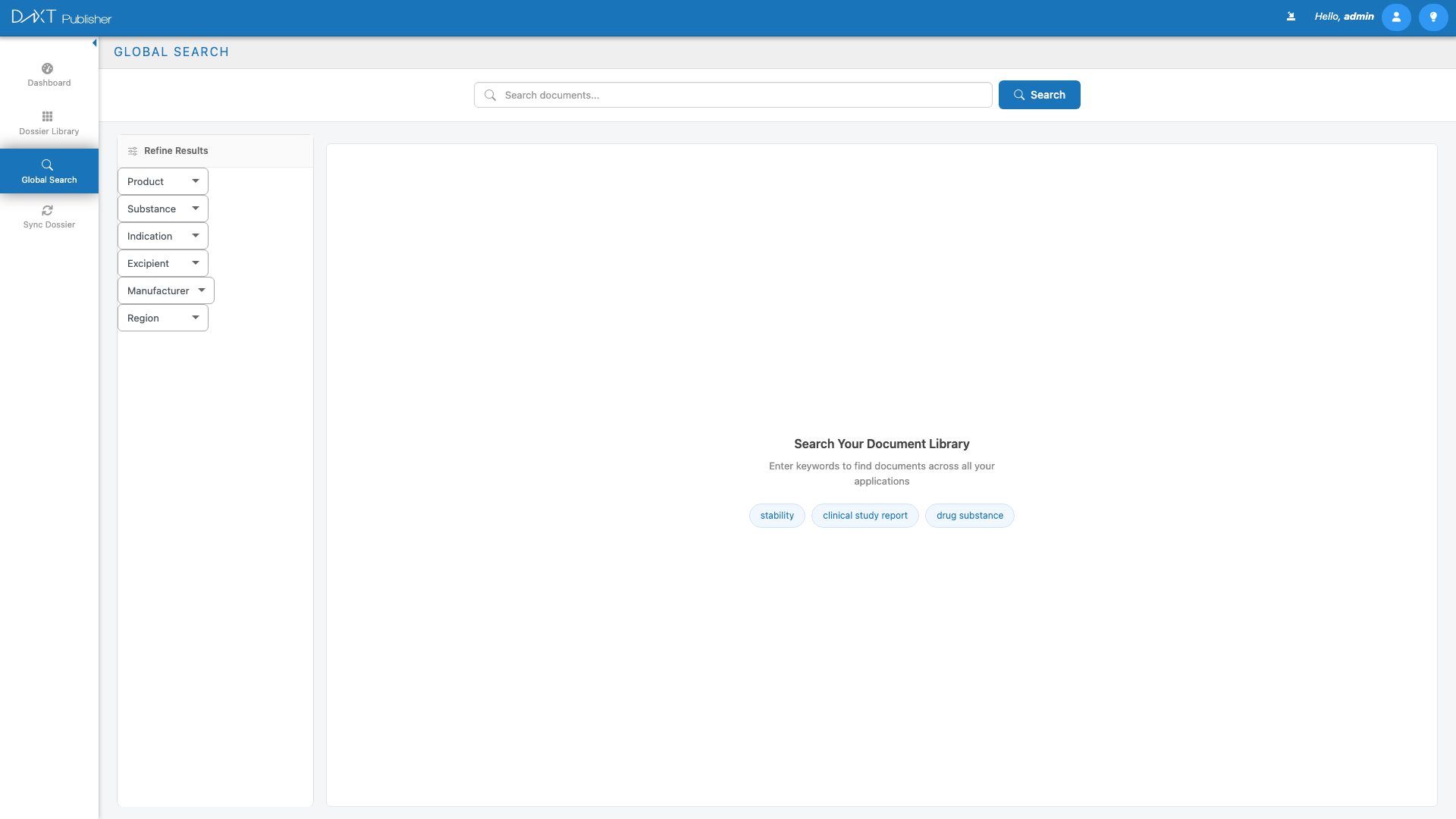
The Global Search feature in DnXT Publisher (accessed through the Document Library) provides a powerful search engine that spans all documents across all dossiers in your workspace. With full-text search, faceted filtering, relevance scoring, AI-powered question answering, and direct navigation to search results in the TOC Editor, Global Search is the fastest way to find any document or piece of information in your regulatory submission library. This guide covers every aspect of the search interface and how to use it effectively.
Accessing Global Search #
Click Document Library in the left navigation panel from any screen in Publisher. The Document Library view opens with the search bar prominently displayed at the top.
Performing a Search #
The search bar accepts free-text queries. Begin typing to search across document titles, content, filenames, and metadata. Search executes automatically after you have entered three or more characters, with a 400-millisecond debounce to prevent excessive queries while you are still typing.
Step-by-Step: Basic Search #
- Navigate to Document Library from the left navigation panel.
- Click the Search Bar at the top of the page.
- Type your search query (for example, “dissolution testing” or “clinical pharmacology report”).
- After typing at least 3 characters, search results begin appearing automatically.
- Review the results in the search results panel below the search bar.
Search Results #
Each search result displays rich information to help you quickly identify the document you need:
| Result Element | Description |
|---|---|
| File Type Icon | A visual icon indicating the file format (PDF, XML, image, etc.). |
| Document Title | The title of the document as recorded in the eCTD backbone. |
| Application Name | The name of the parent dossier/application containing the document. |
| Submission Number | The sequence number of the submission where the document was placed. |
| Path | The eCTD path showing the document’s location in the TOC structure. |
| Content Snippet | A text excerpt from the document content showing the context around your search terms, with matched terms highlighted. |
| Module Tag | A tag indicating which eCTD module the document belongs to (M1, M2, M3, M4, or M5). |
| Relevance Score | A score indicating how closely the document matches your search query. Results are sorted by relevance by default. |
Faceted Filters #
On the left side of the search results, a faceted filter panel lets you narrow results by multiple criteria. Filters update in real time as you select options, and the available filter values reflect only the current result set (so you will not see options that would return zero results).
Available Filter Facets #
| Filter | Description | Example Values |
|---|---|---|
| Application | Filter by specific dossier or application name. | “Product X US NDA”, “Product Y EU MAA” |
| eCTD Module | Filter by eCTD module (M1 through M5). | Module 1, Module 2, Module 3, Module 4, Module 5 |
| Sequence | Filter by submission sequence number. | 0000, 0001, 0002 |
| File Type | Filter by document file format. | PDF, XML, JPG, XPT |
Using Faceted Filters #
- Perform a search using the search bar.
- In the left filter panel, click a filter category to expand it.
- Check one or more values to apply the filter.
- Results update immediately to show only documents matching the selected filters.
- Active filters are shown as selected checkboxes. Uncheck to remove a filter.
- Multiple filters across different categories are combined with AND logic.
AI-Powered Question Answering #
Global Search includes an AI Answer feature that provides direct answers to question-type queries. When you enter a question rather than a keyword search (for example, “What is the dissolution specification for Product X?” or “How many clinical studies are in the NDA?”), the AI Answer section appears above the standard search results.
How AI Answers Work #
- Enter a question in the search bar.
- The AI engine analyzes the most relevant documents in your search results.
- A synthesized answer is displayed in the AI Answer section at the top of the results.
- The answer includes references to the source documents used to generate the response.
- Click any referenced document to navigate to it in the TOC Editor.
Navigating from Search Results #
Clicking any search result navigates you directly to the document’s location in the TOC Editor. Publisher opens the parent dossier, selects the correct submission, and highlights the TOC node where the document is placed. This seamless navigation makes it easy to go from a search result to the full authoring context.
- Click on a search result card.
- Publisher navigates to the TOC Editor for the parent dossier.
- The correct submission sequence is selected.
- The TOC tree scrolls to and highlights the node containing the document.
- The Document Viewer in the right panel opens the document for preview.
Search Strategies #
Here are effective strategies for getting the best results from Global Search:
| Strategy | When to Use | Example |
|---|---|---|
| Keyword search | When you know a specific term in the document. | “ibuprofen dissolution” |
| Document title search | When you know the document’s title or part of it. | “clinical overview” |
| Question search | When you need an answer synthesized from documents. | “What were the primary endpoints in Study 301?” |
| Filter-first search | When you know the application and module but not the specific document. | Filter to Application + Module 3, then search “specification” |
Frequently Asked Questions #
Does Global Search search within PDF content? #
Yes. Global Search indexes the full text content of PDF documents, not just titles and metadata. Content snippets in search results show the matching text within the document body.
How quickly are newly placed documents indexed? #
Documents are typically indexed shortly after placement. There may be a brief delay (usually minutes) before a newly placed document appears in search results.
Can I search across all dossiers or just my own? #
Global Search searches across all dossiers you have access to. You will only see results from dossiers where you have at least view permissions.
Is the search case-sensitive? #
No. Global Search is case-insensitive. Searching for “dissolution” and “Dissolution” returns the same results.
Can I save searches? #
The current version of Global Search does not support saved searches. However, you can bookmark the search URL in your browser if you want to return to a specific query.
What does the relevance score mean? #
The relevance score indicates how closely a document matches your search query. It takes into account term frequency, document section weight, title matches, and other factors. Higher scores indicate closer matches.
Related Articles #
- Submission Authoring with the TOC Editor — Navigate to search results in the TOC Editor.
- Adding and Managing Documents — Place and manage the documents you find through search.
- Dossier Library: Managing Dossiers — Browse dossiers when search is not needed.
- Filters, Favorites, and Views — Learn about filtering across Publisher.


