Filters, Favorites, and Views #
DnXT Publisher provides a consistent system of filters, favorites, and view modes that works across the Dossier Library, Plan Library, Template Library, and other workspace views. Understanding these tools allows you to work efficiently with large collections of dossiers, plans, and templates by quickly narrowing to the items you need, bookmarking frequently accessed items, and displaying content in the format that works best for your task. This guide covers each of these features in comprehensive detail.
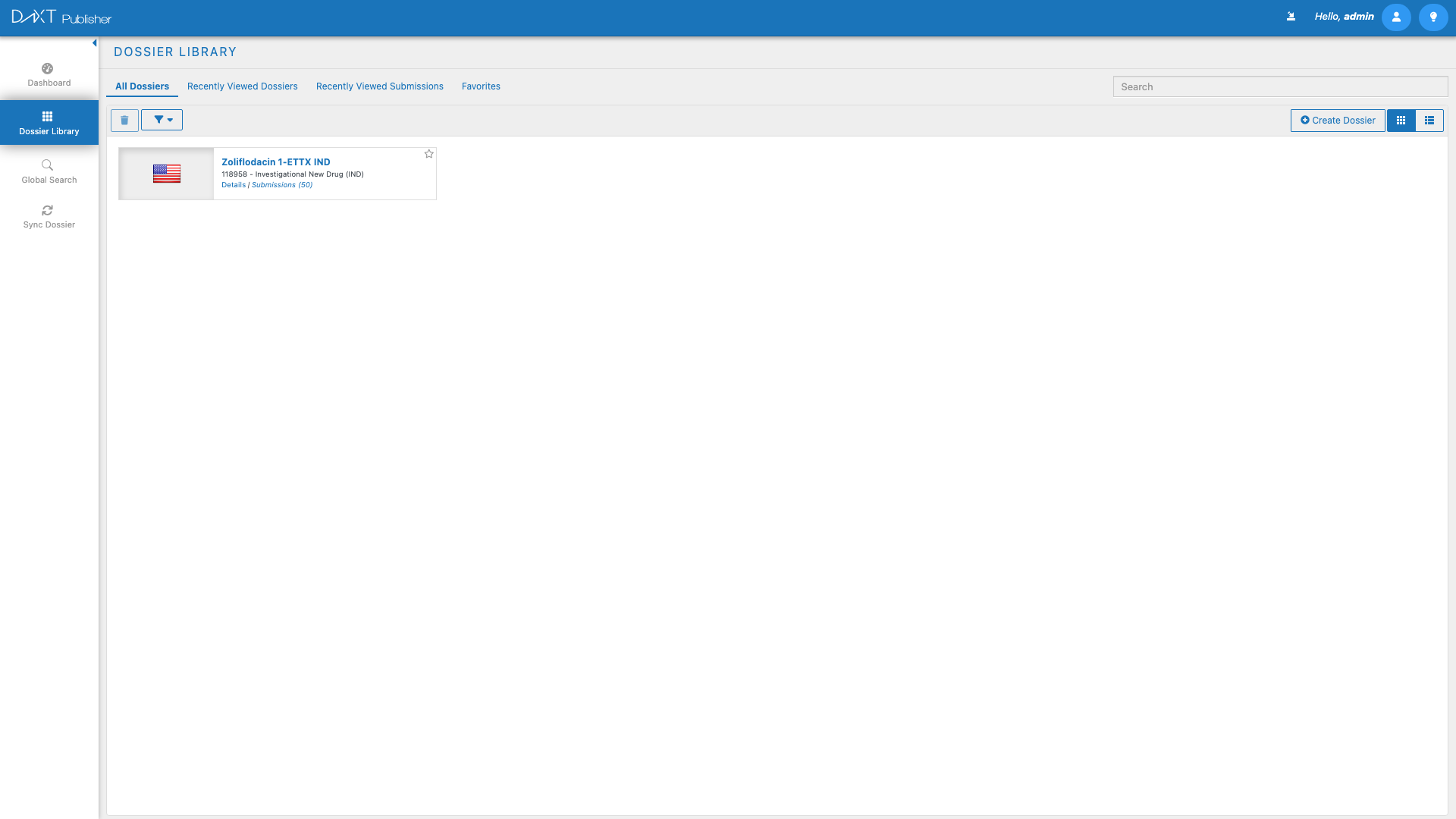
The Filter System #
Publisher’s filter system is designed to help you narrow large collections to exactly the items you need. Filters are available in the Dossier Library, Plan Library, and Template Library, and they share a consistent interface across all views.
How Filters Work #
Filters operate on the currently displayed collection. When you apply a filter, only items matching the filter criteria are shown; everything else is hidden. Multiple filters can be combined (using AND logic), meaning each additional filter further narrows the results.
Predefined Filter Categories #
The filter dropdowns in the toolbar provide access to predefined filter categories. The available categories depend on which library you are in:
| Filter Category | Available In | Description |
|---|---|---|
| Region | Dossier Library, Plan Library | Filter by regulatory region (US, EU, CA, JP, AU, ZA, CH, GCC, TH, SG, HR). |
| Country | Dossier Library, Plan Library | Filter by specific country within a region. |
| Product | Dossier Library, Plan Library | Filter by pharmaceutical product name. |
| Status | Dossier Library, Plan Library, Template Library | Filter by workflow status (Draft, In Review, Approved, Published) or enable/disable status for templates. |
| Application Type | Dossier Library | Filter by application type (NDA, ANDA, BLA, MAA, NDS, etc.). |
| Date Range | Dossier Library, Plan Library | Filter by creation date or modification date within a specified range. |
| Creator | Dossier Library, Plan Library | Filter by the user who created the item. |
Applying Filters #
- In the library toolbar, click a Filter Dropdown (for example, Region).
- The dropdown opens showing all available values for that category, each with a checkbox.
- Check one or more values. For example, check “US” and “EU” to see items from both regions.
- The item list updates immediately to show only matching items.
- Repeat for additional filter categories to further narrow the results.
- Active filters are indicated visually — the filter dropdown shows a count badge or the selected values are highlighted.
Clearing Filters #
To remove a filter:
- Open the filter dropdown and uncheck the selected values.
- Or look for a Clear Filters button or link in the toolbar to remove all active filters at once.
Combining Filters #
When multiple filters are active, they are combined with AND logic. For example, if you select Region = “US” and Status = “Draft”, only US dossiers in Draft status are shown. Items must match all active filter criteria to appear.
Saved Filters #
If you frequently use the same filter combination, save it as a named filter for one-click application in the future.
Creating a Saved Filter #
- Apply the desired filter criteria using the filter dropdowns.
- Click the Save Filter button in the toolbar.
- Enter a descriptive name for the filter. Choose something that clearly describes the filter’s purpose, such as “US FDA Active NDAs” or “All Published EU Submissions Q4 2025”.
- Click Save.
Applying a Saved Filter #
- Open the filter dropdown area.
- Look for the Saved Filters section (typically shown above or below the predefined filter categories).
- Click any saved filter name to instantly apply its criteria.
- The library view updates to show only items matching the saved filter.
Managing Saved Filters #
- Renaming — Some views allow renaming saved filters. Look for an edit or rename option next to the saved filter name.
- Deleting — Remove a saved filter by clicking the delete icon next to its name in the saved filters list.
- Updating — To update a saved filter, apply new filter criteria and save with the same name, or delete the old filter and create a new one.
Favorites #
The Favorites feature lets you bookmark specific dossiers, submissions, plans, sub-plans, and templates for quick access. Favorited items appear in the dedicated Favorites tab in each library view.
Adding an Item to Favorites #
There are several ways to add an item to your favorites:
- Right-click method — Right-click the item tile or list row and select Add to Favorites from the context menu.
- Star icon method — Some views display a star icon on each item. Click the star to toggle the favorite status (hollow star = not favorited, filled star = favorited).
- Details panel method — In the details panel for a selected item, look for a favorite toggle button or star icon.
Viewing Favorites #
Click the Favorites tab in any library (Dossier Library, Plan Library, or Template Library) to see all your favorited items for that category. The Favorites tab shows the same information as the All Items tab but filtered to your personal favorites.
Removing from Favorites #
To remove an item from your favorites, use the same toggle method — click the filled star to unfavorite, or right-click and select Remove from Favorites.
Recently Viewed #
Publisher automatically tracks which dossiers, submissions, plans, sub-plans, and templates you have recently opened. This history is available through the Recently Viewed tabs in each library.
Recently Viewed Dossiers #
The Recently Viewed Dossiers tab in the Dossier Library shows dossiers you have opened (double-clicked into the TOC Editor) in reverse chronological order. The most recently accessed dossier appears first.
Recently Viewed Submissions #
The Recently Viewed Submissions tab shows individual submissions you have accessed, regardless of which dossier they belong to. This is useful when you work with specific submissions frequently.
How Recent History Works #
- Items are added to the Recently Viewed list when you open them (double-click).
- The list is personal to your account.
- The list maintains a fixed number of entries (the most recent items). Older entries are automatically removed as new ones are added.
- You cannot manually add or remove items from the Recently Viewed list — it is maintained automatically.
Tile View vs. List View #
All library views in Publisher support two display modes, toggled by buttons in the toolbar:
Tile View #
| Aspect | Details |
|---|---|
| Layout | Items displayed as visual cards in a responsive grid. |
| Information shown | Item name, region flag, product, status indicator, key metadata. |
| Best for | Visual scanning, smaller collections, recognizing items by visual appearance. |
| Sorting | Default sorting order (usually alphabetical or by modification date). |
List View #
| Aspect | Details |
|---|---|
| Layout | Items displayed as rows in a table with sortable columns. |
| Information shown | All metadata fields as columns (name, region, country, product, type, status, dates, creator). |
| Best for | Large collections, comparing items, sorting by specific attributes, data-dense views. |
| Sorting | Click any column header to sort ascending/descending by that column. |
Switching Views #
Click the Tile View or List View button in the toolbar to switch. Your view preference is remembered across sessions — if you prefer List View, it will be the default the next time you open the library.
TOC Editor View Filters #
In addition to the library-level filters described above, the TOC Editor has its own set of view filters in the left panel footer. These filters control how the TOC tree is displayed:
| Filter | Effect |
|---|---|
| Display excluded | Shows TOC sections that have been excluded from the current submission. Useful for reviewing which sections were intentionally omitted. |
| Display current leaves | Shows only leaf nodes that have documents placed in the current submission. Hides all empty and inherited-only sections. |
| Hide empty sections | Hides sections that have no documents placed in any submission. Reduces the tree to only sections with content. |
These TOC filters are independent of the module filter buttons (All, M1-M5) and can be combined with them. For example, you can filter to Module 3 only and also hide empty sections, showing only Module 3 sections that have documents.
Right-Click Context Menu #
Throughout Publisher’s library views, right-clicking provides a context menu with common actions. The available options vary by context but typically include:
- Select All — Select all visible items in the current view.
- Deselect All — Clear all selections.
- Refresh — Reload the current view with the latest data from the server.
- Add to Favorites / Remove from Favorites — Toggle the favorite status of the selected item.
Combining Filters, Favorites, and Views for Maximum Efficiency #
Here are recommended workflows that combine these features:
Daily Workflow #
- Open the Dossier Library.
- Switch to the Favorites tab to see your most important dossiers.
- If a dossier you need is not in Favorites, switch to Recently Viewed Dossiers.
- If still not found, use the search bar or apply filters on the All Dossiers tab.
Review Workflow #
- Switch to List View for a comprehensive tabular display.
- Apply a Status filter for “In Review”.
- Apply a Region filter if reviewing for a specific region.
- Sort by Modified Date to see the most recently updated items first.
- Save this filter combination as “My Review Queue” for future sessions.
Management Reporting #
- Use List View for data-dense display.
- Apply a Date Range filter for the reporting period.
- Filter by Status = “Published” to see completed submissions.
- Sort by Region to group results geographically.
Frequently Asked Questions #
Do filters persist between sessions? #
Temporary filters (applied via dropdowns) are cleared when you navigate away from the library or close your browser. Only Saved Filters persist between sessions.
Can I share saved filters with my team? #
Saved filters are currently personal to your account. For team-wide filter standards, coordinate naming conventions with your team and have each member create the same saved filters.
Is there a limit to the number of favorites? #
There is no hard limit on the number of favorites. However, having too many favorites reduces their usefulness. Keep your favorites list focused on the items you access most frequently.
Can I sort items in Tile View? #
Tile View uses a default sorting order (typically alphabetical by name or by modification date). For flexible sorting, switch to List View where you can sort by clicking any column header.
How long do items stay in Recently Viewed? #
The Recently Viewed list maintains a fixed number of entries (the exact number depends on system configuration). Older entries are automatically replaced as new items are accessed.
Can I customize which columns appear in List View? #
Column visibility in List View depends on the library and your system configuration. Contact your administrator if you need different columns displayed.
Related Articles #
- Dossier Library: Managing Dossiers — Apply filters and views in the Dossier Library.
- Plan Library: Working with Plans — Use filters and favorites in the Plan Library.
- Template Library — Browse and filter templates.
- Submission Authoring with the TOC Editor — Use TOC-level view filters in the editor.
- Global Search — Use faceted filters in Global Search.


